
Are you still sending your users’ data to an API just to get “Hello, world” back… and paying for it?
I get it: cloud LLMs are easy. But in real apps, the bill grows fast, and “we sent the customer’s text to a third party” becomes a very uncomfortable meeting.
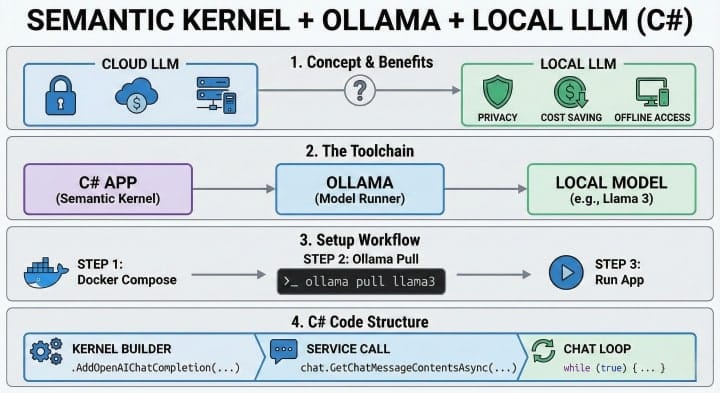
In this post we’ll build a simple local chat assistant in C# using Microsoft Semantic Kernel (SK) + Ollama. The model runs on the user’s machine, so you keep:
- Privacy (data stays local)
- Cost control (no per-token bill)
- Offline mode (laptops on a plane still work)
And we’ll add Plugins so the model can call your C# methods (current time, database query, etc.) like a “tool belt”.
What we will build
A console app that:
- Talks to a local model via Ollama
- Keeps chat history (context)
- Lets the model call safe C# functions through SK Plugins
- Shows a few prompt patterns that make the assistant behave like you want
Here’s the mental model:
[User] -> [ChatHistory + System Rules] -> [Semantic Kernel]
                                      -> [Ollama Local Model]
                                      <- [Tool Call?]
                                      -> [Plugin Function in C#]
                                      <- [Tool Result]
                                      <- [Final Answer]
Semantic Kernel in plain words
Semantic Kernel is a thin layer between your app and an LLM.
It gives you:
- A consistent way to plug in AI providers (local or cloud)
- Chat history and execution settings
- Plugins (C# methods that the model can call)
- Helpers for function calling (“tools”) and safe invocation
Think of SK as the “DI container + orchestration” for AI.
Step 0: Install and test Ollama
Ollama runs models locally and exposes an HTTP API (default: http://localhost:11434).
- Install Ollama
- Windows / macOS: installer from the Ollama site
- Linux: follow the official install steps
- Pull a model
Good starters:
- Phi-3: fast and small
- Llama 3 / 3.1: stronger, heavier
Examples:
ollama pull phi3:mini
ollama pull llama3.1- Run it once to confirm it works:
ollama run phi3:mini
# type: "Write a haiku about unit tests" and press Enter
If this works, your C# app can use the same local server.
Step 1: Create a .NET app and add packages
Create a console project:
dotnet new console -n LocalSkChat
cd LocalSkChat
Add packages:
dotnet add package Microsoft.SemanticKernel
# The Ollama connector is still marked experimental, so use the prerelease
# (use the newest alpha that fits your Semantic Kernel version)
dotnet add package Microsoft.SemanticKernel.Connectors.Ollama --prerelease
Step 2: Connect Semantic Kernel to Ollama
Open Program.cs and start with the basics.
Note: the Ollama connector is marked experimental, so you may see warnings. That’s normal.
using Microsoft.SemanticKernel;

#pragma warning disable SKEXP0070

var modelId = "phi3:mini";               // or "llama3.1"
var endpoint = new Uri("http://localhost:11434");

var builder = Kernel.CreateBuilder();
builder.AddOllamaChatCompletion(
    modelId: modelId,
    endpoint: endpoint,
    serviceId: "ollama");

var kernel = builder.Build();

Console.WriteLine($"Connected to Ollama model: {modelId}");
At this point you have a Kernel that knows how to send chat requests to your local model.
Step 3: Chat with context (chat history)
Now let’s add a loop with a system message (rules) and chat memory.
using Microsoft.SemanticKernel.ChatCompletion;
using Microsoft.SemanticKernel.Connectors.Ollama;

#pragma warning disable SKEXP0070

var chat = kernel.GetRequiredService<IChatCompletionService>();

var history = new ChatHistory(
    "You are a helpful assistant for a C# app. " +
    "Be short. If you are unsure, say so. " +
    "Never invent database results."
);

while (true)
{
    Console.Write("\nYou: ");
    var input = Console.ReadLine();
    if (string.IsNullOrWhiteSpace(input)) continue;
    if (input.Equals("/bye", StringComparison.OrdinalIgnoreCase)) break;

    history.AddUserMessage(input);

    var settings = new OllamaPromptExecutionSettings
    {
        Temperature = 0.2,
        TopP = 0.9,
        NumPredict = 512
    };

    var reply = await chat.GetChatMessageContentAsync(history, settings);

    Console.WriteLine($"AI: {reply.Content}");
    history.AddAssistantMessage(reply.Content ?? string.Empty);
}
Why this matters:
- System message is your “boss voice” (rules, tone, limits)
- History is your short-term memory
If the model answers poorly, 80% of the time it’s because your system message is vague, or your history is too long/noisy.
Step 4: Give the model hands (Plugins)
A local model is still “just text”. It can’t actually read your database or call your API.
Plugins fix that.
In SK, a Plugin is a class with methods marked with [KernelFunction]. SK can advertise these functions to the model as tools, and the model can request calls.
Plugin 1: Current time
Create a new file Plugins/TimePlugin.cs:
using System.ComponentModel;
using Microsoft.SemanticKernel;

public sealed class TimePlugin
{
    [KernelFunction]
    [Description("Gets the current local time. Optionally for a specific timezone.")]
    public string GetCurrentTime(
        [Description("IANA timezone id like Europe/Sofia. Leave empty for local.")] string? timeZone = null)
    {
        DateTimeOffset now;

        if (string.IsNullOrWhiteSpace(timeZone))
        {
            now = DateTimeOffset.Now;
        }
        else
        {
            // TimeZoneInfo expects Windows IDs on Windows.
            // In real apps, map IANA <-> Windows, or accept Windows IDs.
            var tz = TimeZoneInfo.FindSystemTimeZoneById(timeZone);
            now = TimeZoneInfo.ConvertTime(DateTimeOffset.Now, tz);
        }

        return now.ToString("yyyy-MM-dd HH:mm:ss zzz");
    }
}
Plugin 2: Fake “database” query (safe demo)
For the blog, I prefer a demo that compiles without a DB.
Create Plugins/CustomerPlugin.cs:
using System.ComponentModel;
using Microsoft.SemanticKernel;

public sealed class CustomerPlugin
{
    // In real life, replace this with EF Core or Dapper.
    private static readonly Dictionary<string, string> Customers = new(StringComparer.OrdinalIgnoreCase)
    {
        ["alice@demo.local"] = "Alice (Gold plan)",
        ["bob@demo.local"] = "Bob (Trial)"
    };

    [KernelFunction]
    [Description("Looks up a customer by email in the local customer store.")]
    public string FindCustomerByEmail(
        [Description("Customer email address")] string email)
    {
        if (string.IsNullOrWhiteSpace(email))
            return "Missing email.";

        if (email.Length > 200)
            return "Email too long.";

        return Customers.TryGetValue(email, out var result)
            ? result
            : "Customer not found.";
    }
}
Register plugins in the Kernel
Back in Program.cs, after Kernel.CreateBuilder():
builder.Plugins.AddFromType<TimePlugin>("time");
builder.Plugins.AddFromType<CustomerPlugin>("customers");
Step 5: Let the model call your Plugin methods
Now we need to enable function calling behavior.
Update your call to GetChatMessageContentAsync to pass the kernel too (so SK can execute tool calls).
using Microsoft.SemanticKernel;
using Microsoft.SemanticKernel.ChatCompletion;
using Microsoft.SemanticKernel.Connectors.Ollama;

#pragma warning disable SKEXP0070

var chat = kernel.GetRequiredService<IChatCompletionService>();

var history = new ChatHistory(
    "You are a helpful assistant. " +
    "You may call tools to get the current time or customer info. " +
    "If a tool result says 'not found', say that clearly."
);

while (true)
{
    Console.Write("\nYou: ");
    var input = Console.ReadLine();
    if (string.IsNullOrWhiteSpace(input)) continue;
    if (input.Equals("/bye", StringComparison.OrdinalIgnoreCase)) break;

    history.AddUserMessage(input);

    var settings = new OllamaPromptExecutionSettings
    {
        Temperature = 0.1,
        NumPredict = 512,
        FunctionChoiceBehavior = FunctionChoiceBehavior.Auto()
    };

    var reply = await chat.GetChatMessageContentAsync(history, settings, kernel);

    Console.WriteLine($"AI: {reply.Content}");
    history.AddAssistantMessage(reply.Content ?? string.Empty);
}
Test prompts:
- “What time is it now?”
- “Check if alice@demo.local exists.”
- “What is the plan of bob@demo.local?”
If your model supports tools well, you should see correct answers. If the model refuses to call tools, try:
- a model that is better at tool use (often Llama 3.1/3.2 variants do better)
- a more direct system message (“Always call tools when needed.”)
- lower temperature (0.0–0.2)
Safety note: Plugins are power tools
The second you let an LLM call code, you must treat it like any other untrusted input.
Rules I use in real projects:
- Keep Plugins small and boring (one job per function)
- Validate inputs (length limits, allow lists)
- Don’t expose “run any SQL” or “run any shell command”
- Keep write actions separate (read-only functions first)
- Add logging: tool name, arguments, duration, result size
A good pattern is to wrap “danger” calls behind approval:
- Model proposes an action
- You show it to the user (“Do you want me to delete 3 records?”)
- Only then execute
Handling context without blowing up your prompt
Local models have limits. And your app does too.
If you keep adding messages forever, you will eventually:
- hit context window limits
- slow down generation
- get weird answers because old messages conflict with new ones
Practical context pattern: rolling summary
Every N messages, summarize older chat into one short note, then keep only:
- system message
- summary message
- last ~6 user/assistant turns
Here’s a simple helper that does it.
Create ChatMemory.cs:
using Microsoft.SemanticKernel.ChatCompletion;

public static class ChatMemory
{
    public static async Task CompactAsync(
        IChatCompletionService chat,
        ChatHistory history,
        int maxMessages,
        Func<ChatHistory, Task<string>> summarize)
    {
        if (history.Count <= maxMessages) return;

        // Keep the system message and last messages
        var system = history.FirstOrDefault(m => m.Role == AuthorRole.System);
        var tail = history.Skip(Math.Max(0, history.Count - 8)).ToList();

        var summary = await summarize(history);

        history.Clear();

        if (system is not null)
            history.Add(system);

        history.AddAssistantMessage("Summary so far: " + summary);

        foreach (var msg in tail)
            history.Add(msg);
    }
}
And use it in your loop:
await ChatMemory.CompactAsync(
    chat,
    history,
    maxMessages: 20,
    summarize: async (fullHistory) =>
    {
        var temp = new ChatHistory(
            "Summarize this conversation in 5 bullet points. Keep names, ids, and decisions.");

        foreach (var m in fullHistory)
            temp.Add(m);

        var s = new OllamaPromptExecutionSettings { Temperature = 0, NumPredict = 256 };
        var sum = await chat.GetChatMessageContentAsync(temp, s);
        return sum.Content ?? "(no summary)";
    });
This is not perfect, but it’s simple and works.
Prompt engineering in C# that actually helps
“Prompt engineering” sounds like a big deal, but for most apps it’s 3 things:
1) A strong system message
Be clear. Be strict. Example:
- role (“You are a support bot for product X”)
- format (“Answer in Markdown with bullets”)
- limits (“If you don’t know, say you don’t know”)
- tool policy (“Call tools for time and customer lookups; do not guess”)
2) A stable output format
If you need structured output, ask for it every time.
Example user prompt wrapper:
history.AddUserMessage($@"User request: {input}

Return:
1) Short answer (max 3 lines)
2) If you used a tool, mention which one
3) Next step suggestion
");
3) Lower randomness for “app work”
Most business assistants should not be creative.
Use low temperature (0–0.2). Save higher values for brainstorming.
Troubleshooting: common issues
“It answers, but never calls my plugins”
Try:
- a model with good tool support
FunctionChoiceBehavior.Required()for a quick test (you can switch back later)- keep function descriptions short and clear
“It calls tools too often”
- Add a rule: “Call tools only when needed.”
- Hide noisy functions (don’t register everything)
“It’s slow”
- Use smaller models (Phi-3 mini)
- Reduce
NumPredict - Use streaming (SK supports streaming APIs; great for UI)
When local models are a bad idea
I love local models, but they are not magic.
Local may be wrong when:
- you need top quality reasoning for hard tasks
- you want a single model for thousands of users (local hardware won’t scale)
- you must support phones with low CPU/RAM
A very real hybrid approach:
- local model for “basic helper” tasks
- cloud model only for premium or heavy tasks
FAQ: Local Semantic Kernel + Ollama questions
No. Ollama runs locally. If you use its OpenAI-compatible endpoint in other clients, they may require a dummy key string.
Yes. SK can use Ollama for embeddings too, and you can store vectors in a DB (SQLite, Postgres, etc.). Start simple: get chat + tools working first.
Not directly. Expose safe query functions (filters, paging, allow lists). Treat all tool inputs as untrusted.
Yes. The same Kernel setup works in DI. You can register the Kernel as a singleton and inject it into controllers or minimal APIs.
Phi-3 mini if you want speed. Llama 3.1 if you want better tool usage. If one model is stubborn about tools, switch models.
Conclusion: Local AI in C# without cloud bills
If you take only one thing from this post, let it be this: local AI is not a toy anymore. You can ship a real assistant that runs on the user’s machine, keeps data private, and still feels useful.
Try the sample, add one real Plugin (a read-only DB lookup is a great start), and see how it changes your app. And if you hit a weird tool-calling problem, share your setup in the comments – model name, prompt, and SK version – and I’ll try to help.
What would you let a local model do first in your app – read logs, search docs, or query a database?